






Subtitles are essential these days in the live streaming industry as they can greatly enhance the viewer experience and improve accessibility. Whether you are streaming on platforms like Twitch, YouTube, or any other live streaming service, incorporating automated subtitles offers a positive impact for your viewers. Here’s a step-by-step guide on how to set up Automated subtitles when streaming with OBS:
Step 1 – Customize the web captioner
First, let’s go to https://webcaptioner.com/captioner By clicking on the 3 dots, you’ll be able to customize the web captioner.
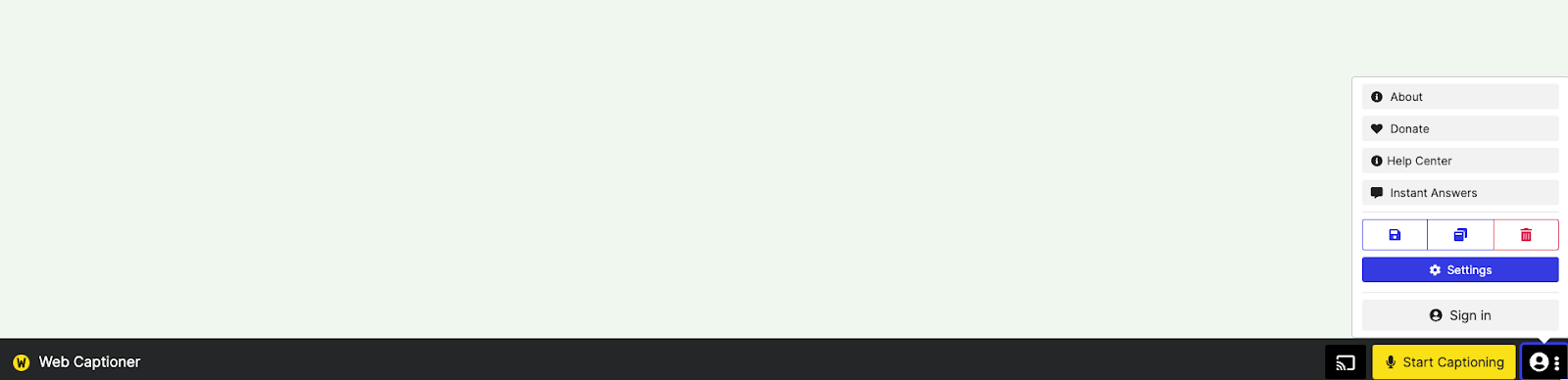
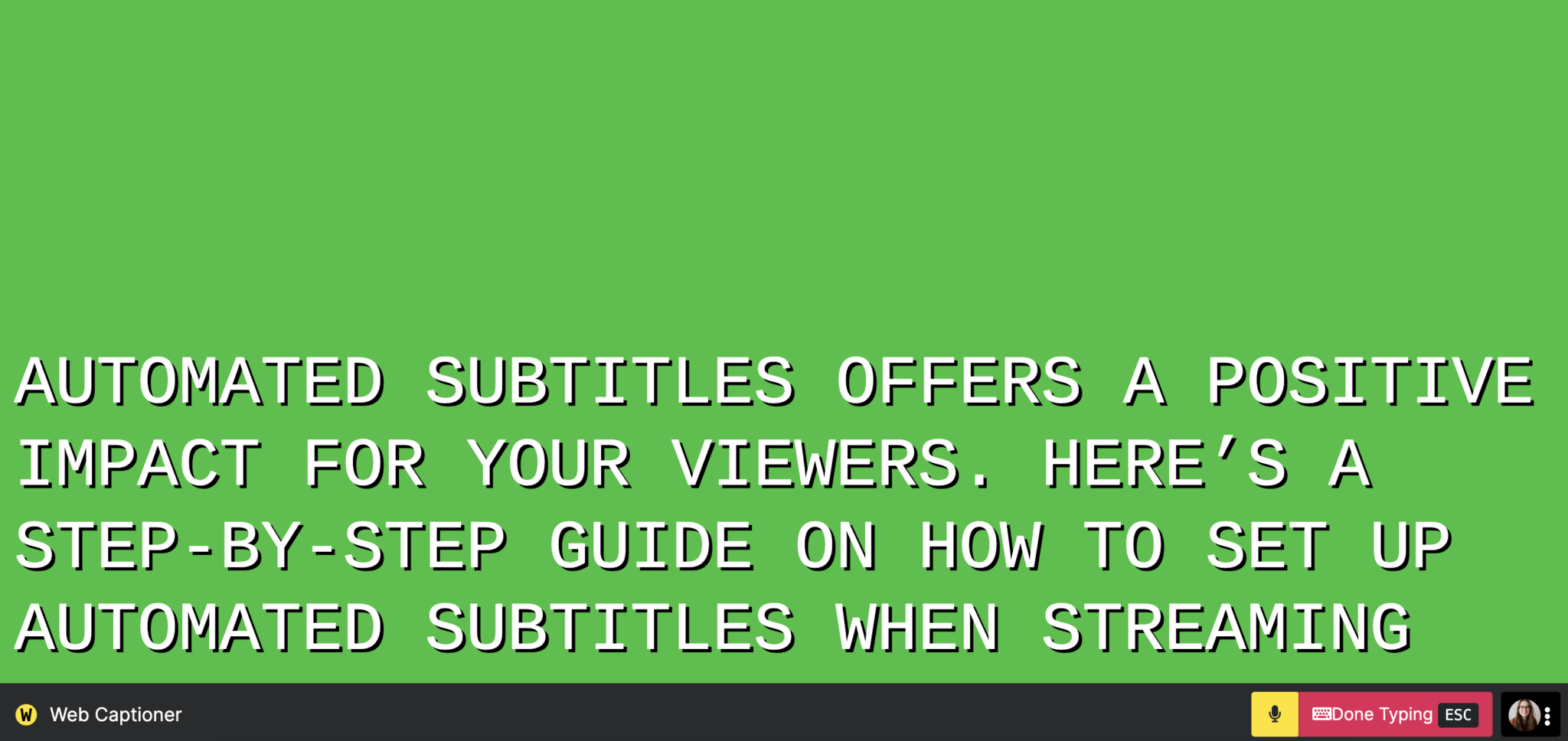
On the appearance tab of the settings, you’ll be able to personalize the appearance of your subtitles and other kinds of settings, for instance, you can change the background color to a green one, so we’ll be able to green screen it out.
Allow the microphone of your choice to access the web captioner.
You should be able to see the web captioner reflecting what’s being said through your microphone.
Step 2 – Set up your OBS
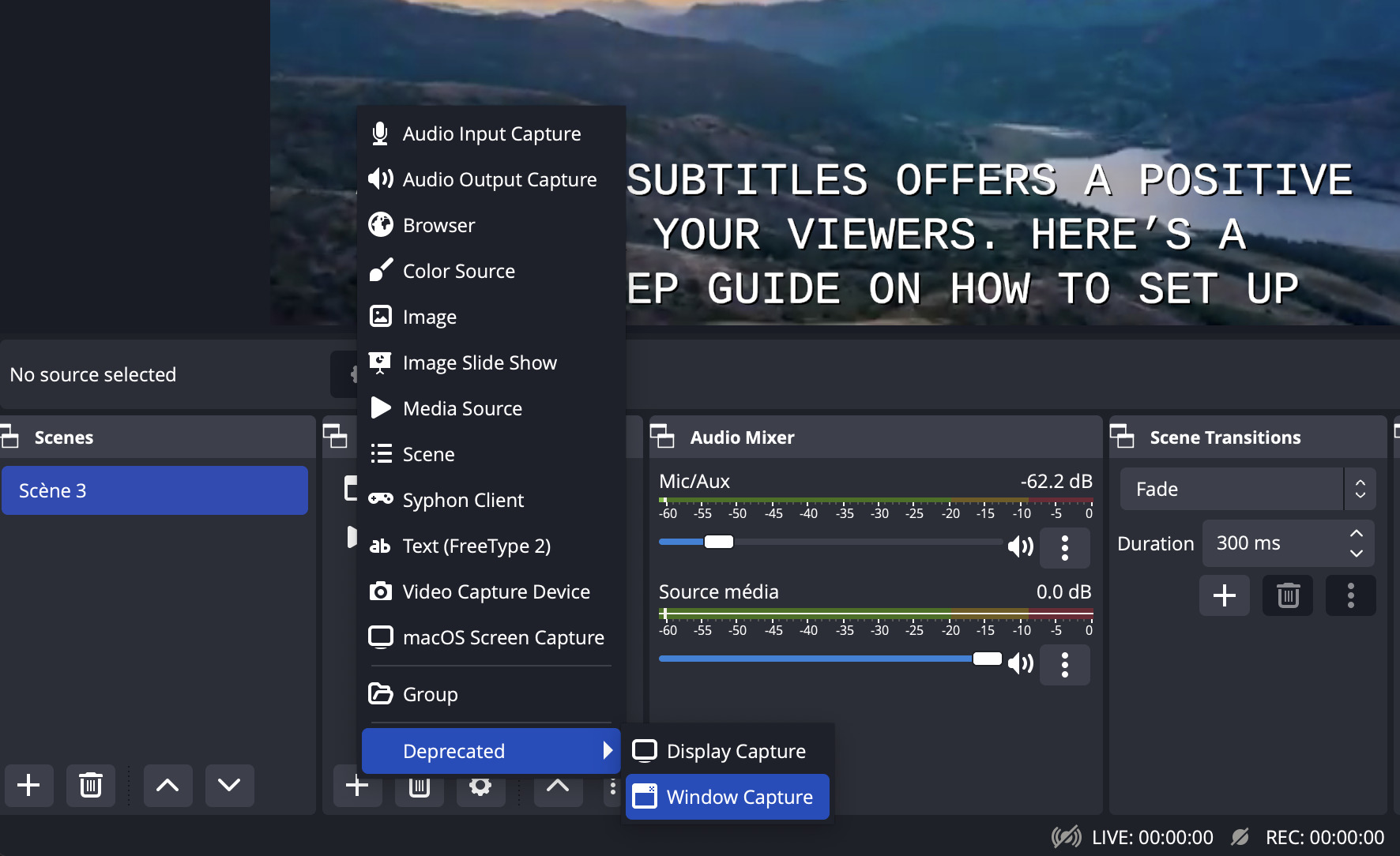
Once you’re done setting up the web captioner, let’s go ahead and set up your OBS. Click the ‘+’ button to add a source, then select “Window Capture Source”.
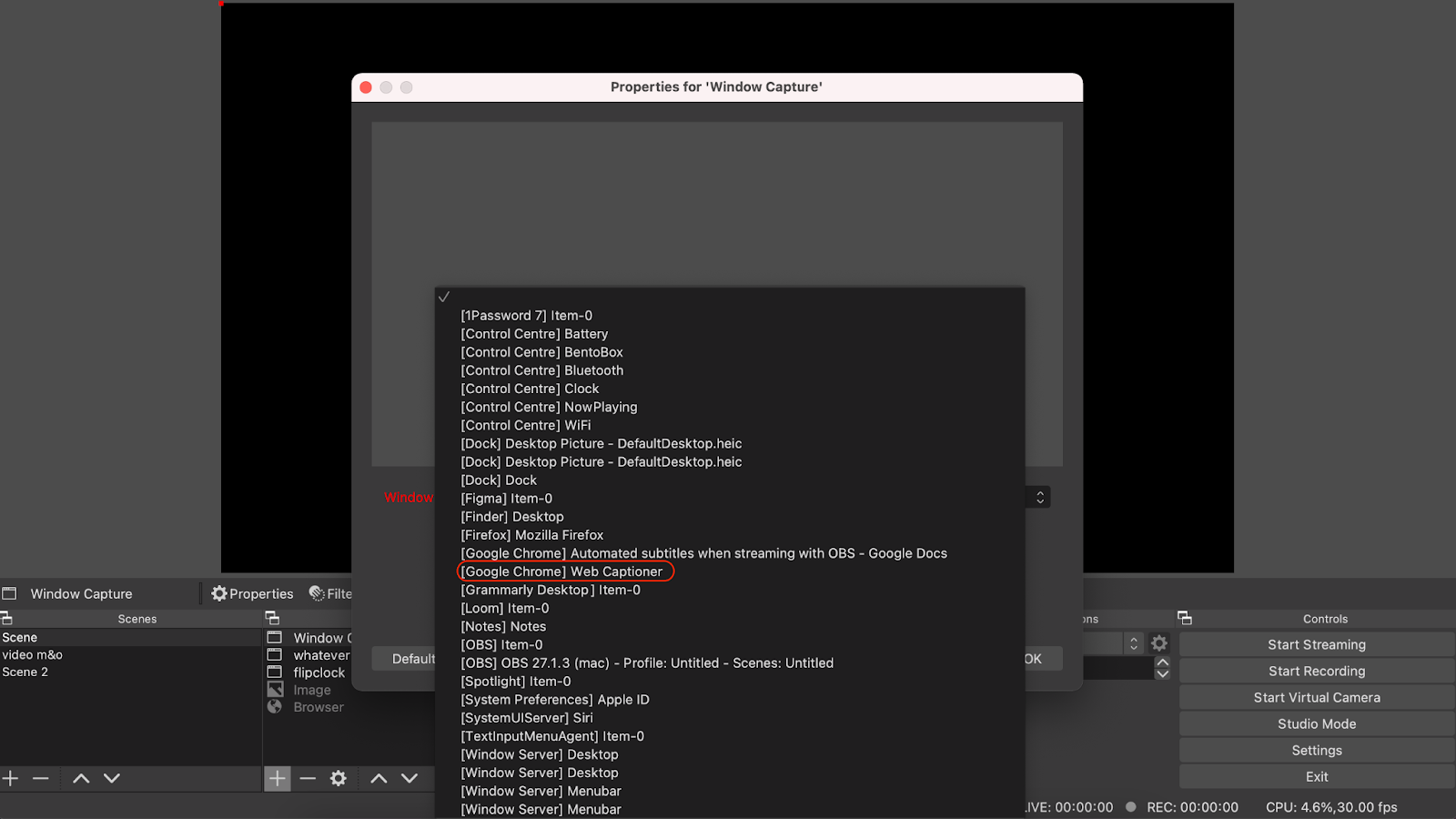
You should be able to see your Web Captioner as one of the options, select it.
Step 3 – Adapt it to your screen
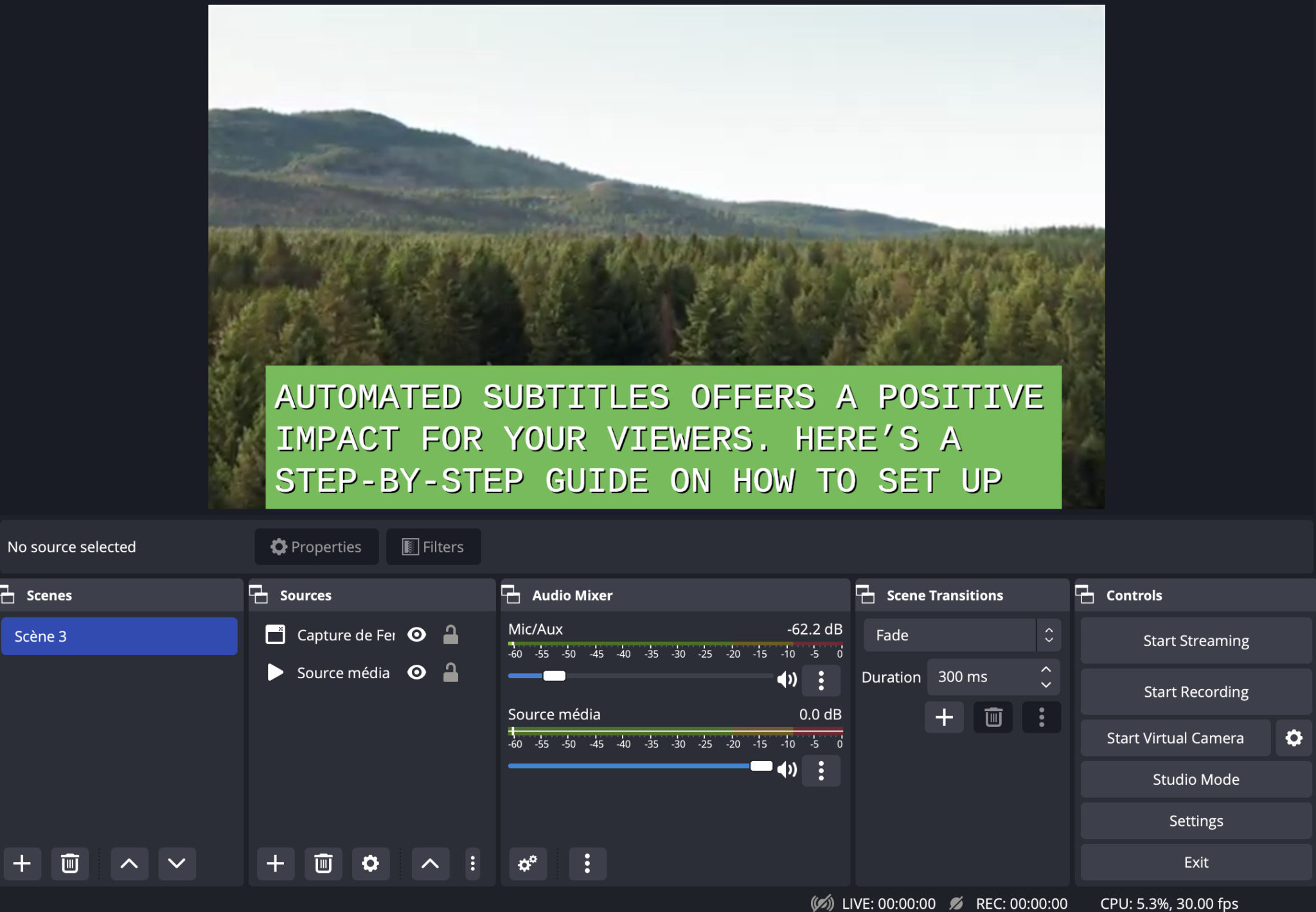
After displaying the web captioner tab in OBS, what you need to do is stretch the tab so it fills the screen, and then crop it (you can use your alt key for PC or option key for MACs) on your preference.
Step 4 – Filter it
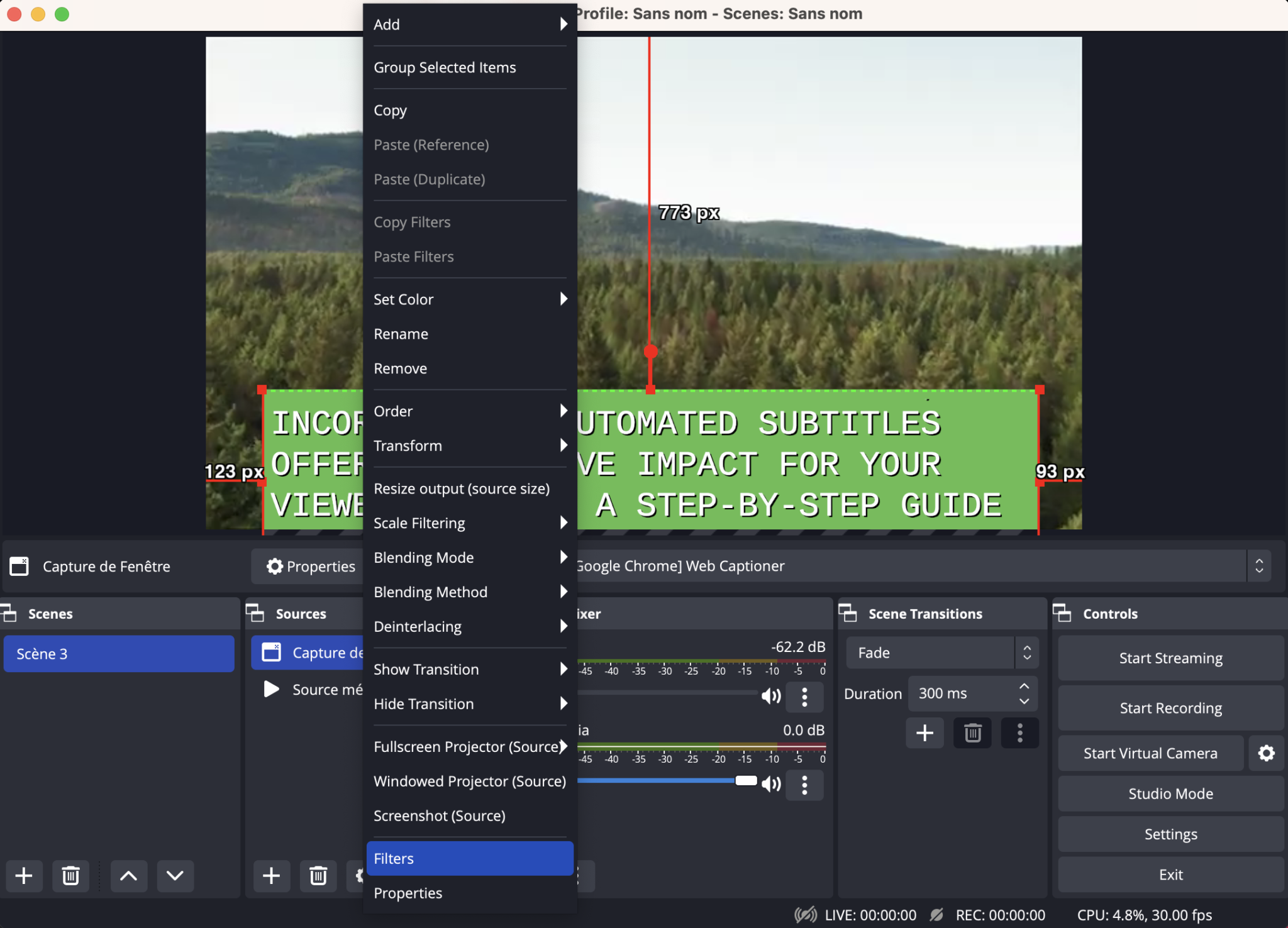
When it’s displayed the way you like, you can click right on your ‘Window Capture Source’ and select “Filter”.
Step 5 – Remove background
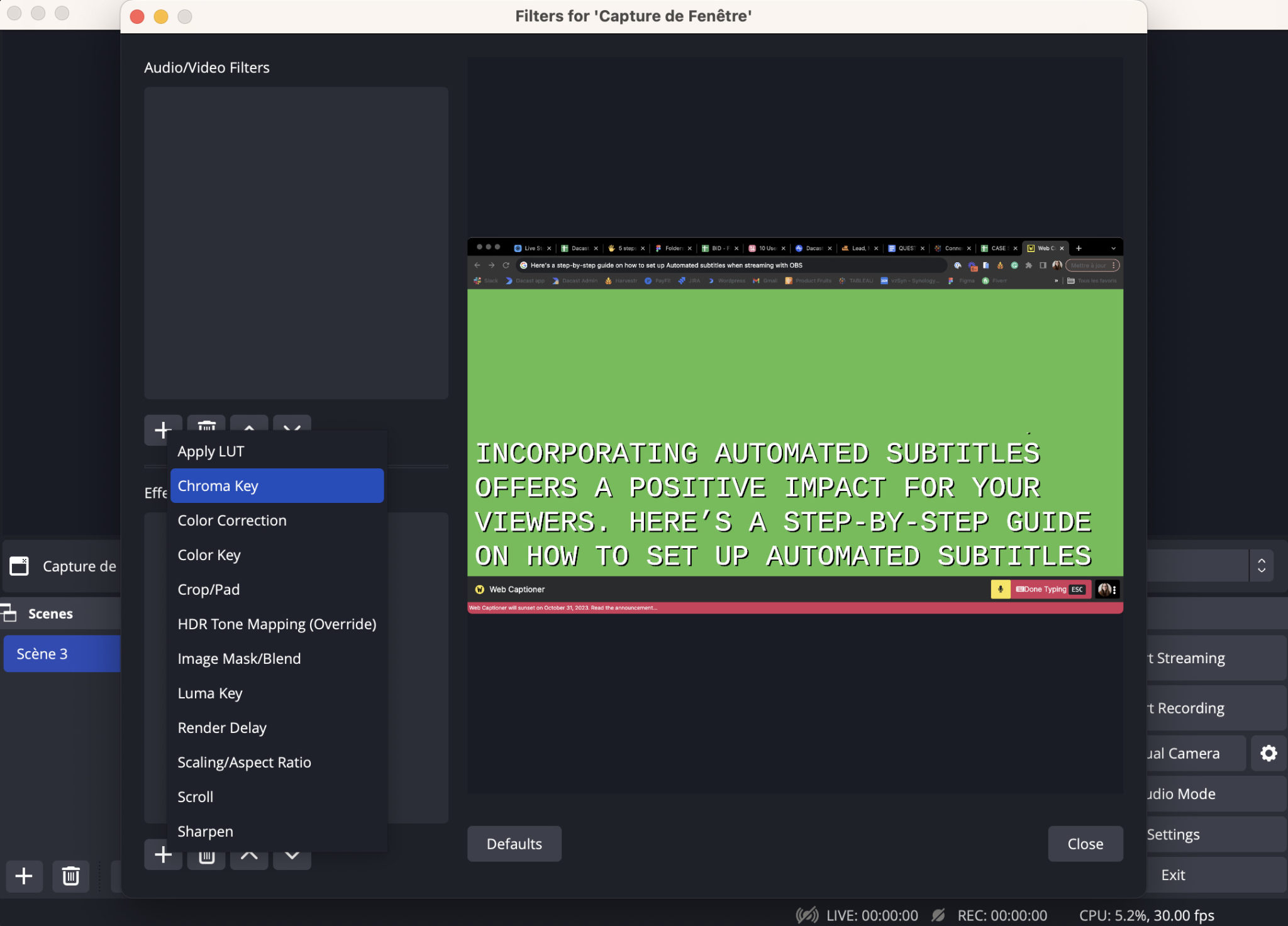
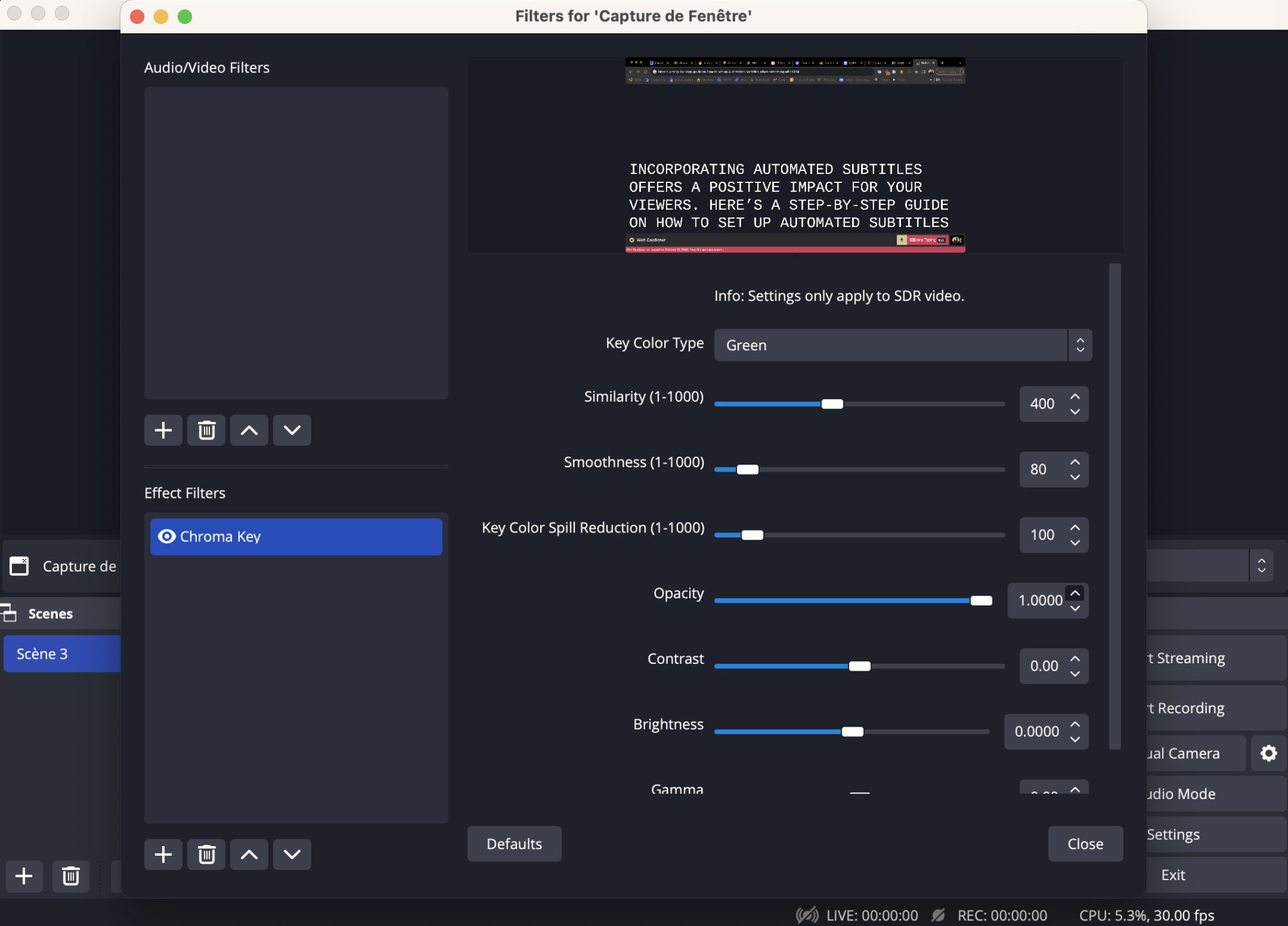
Click the ‘+’ and go to ‘Chroma Key’, specify any name you’d like and close the window, to make the background disappear.
With Background:
Without background:
Note: If you want to change the subtitles’ appearance like Fonts, Text Color, Text size etc., you can do it by going to this link.
Once done, click the “Close” button to save.
Step 6 – Result
You can now see your subtitles displayed without background:
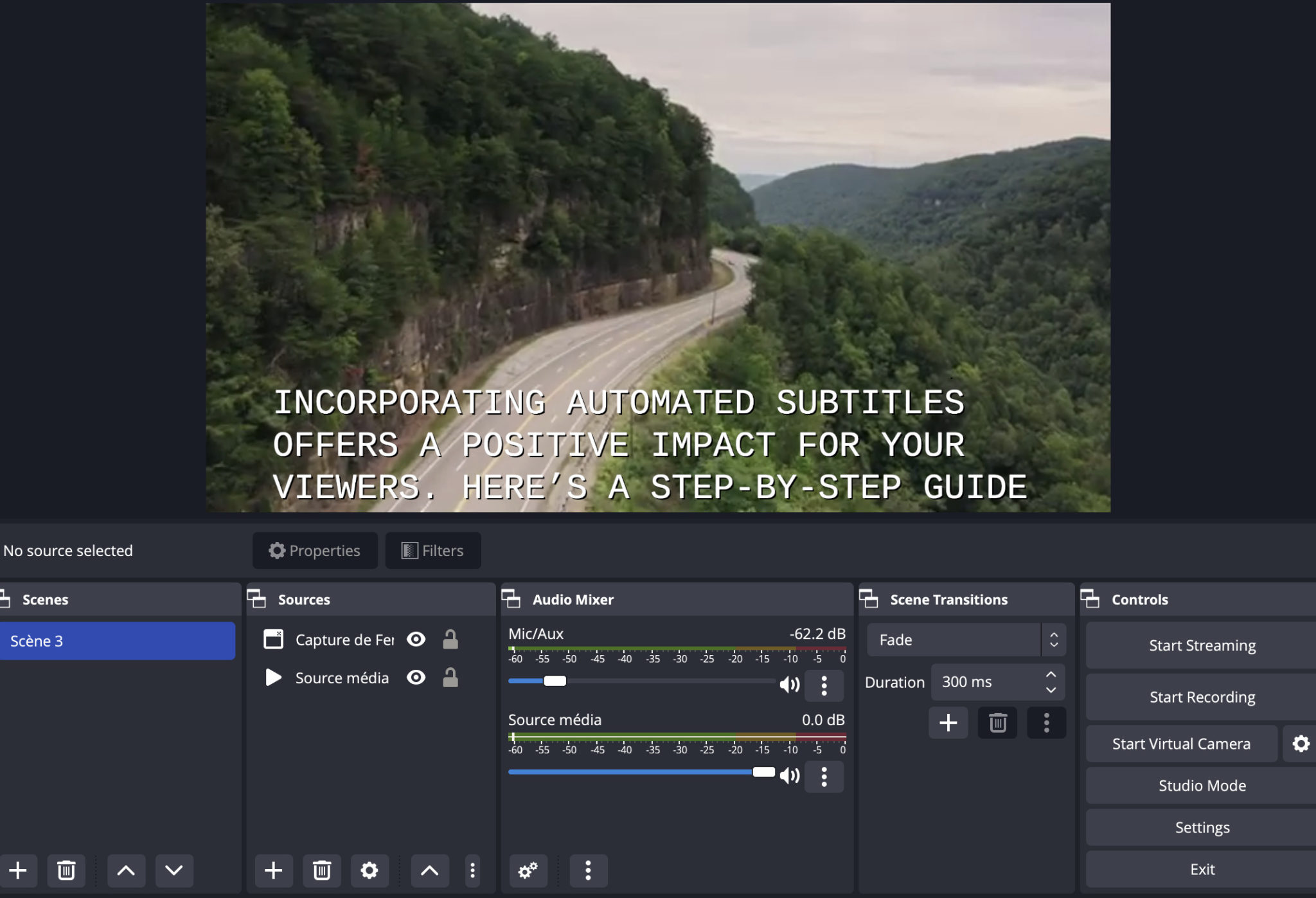
When you set up Automated subtitles when streaming with OBS, you not only improve accessibility and inclusivity but also enhance viewer comprehension, engagement, and the overall quality of your content.