






You probably need to delete uploaded videos from time to time because they are no longer relevant, you need storage space, or for other reasons. To delete your video content in your Dacast account, you will need to move the videos to your “Trash” folder and then select ‘Empty Trash’.
To do so, we invite you to review the step by step walkthrough below:
Move your video(s) to the trash folder
1. Once in your Dacast account, click on ‘ Videos’ on the left menu of your dashboard:

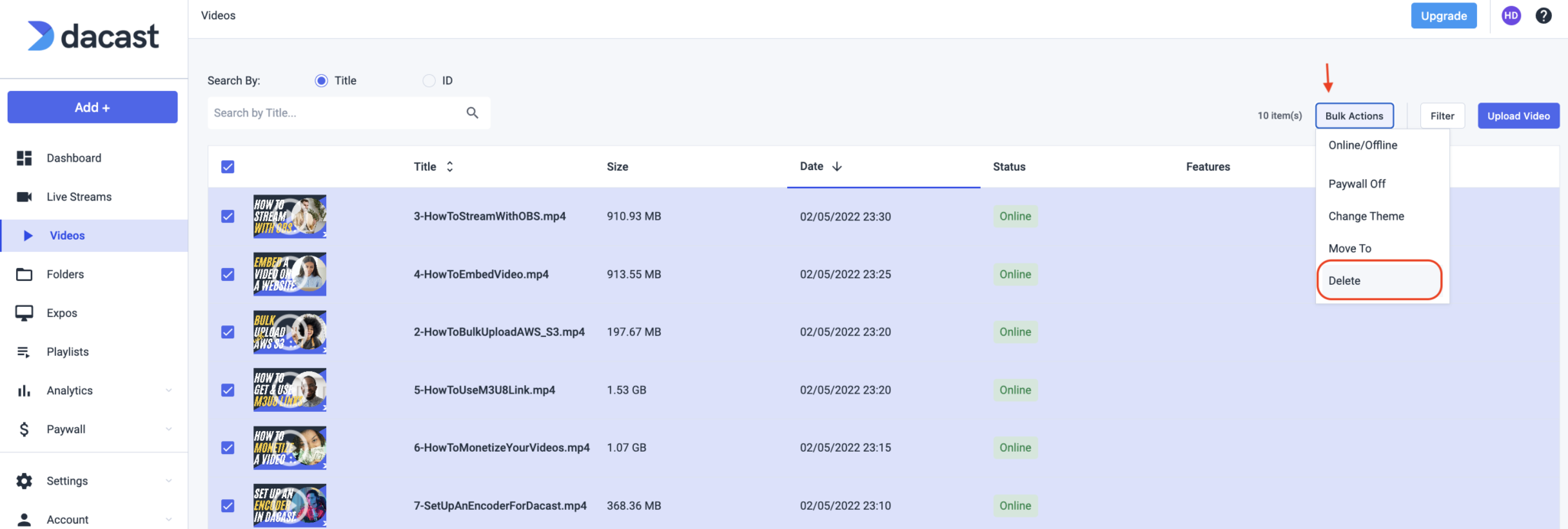
- Check the box of the video content you would like to delete and click the ‘Delete’ button as shown below:

- If you wish to delete multiple videos simultaneously, you can Mark/Unmark content by clicking the checkboxes on the left side of your VOD list.
When satisfied with the selection, select ‘Delete’ in the “Bulk Actions” options:
Empty the trash folder
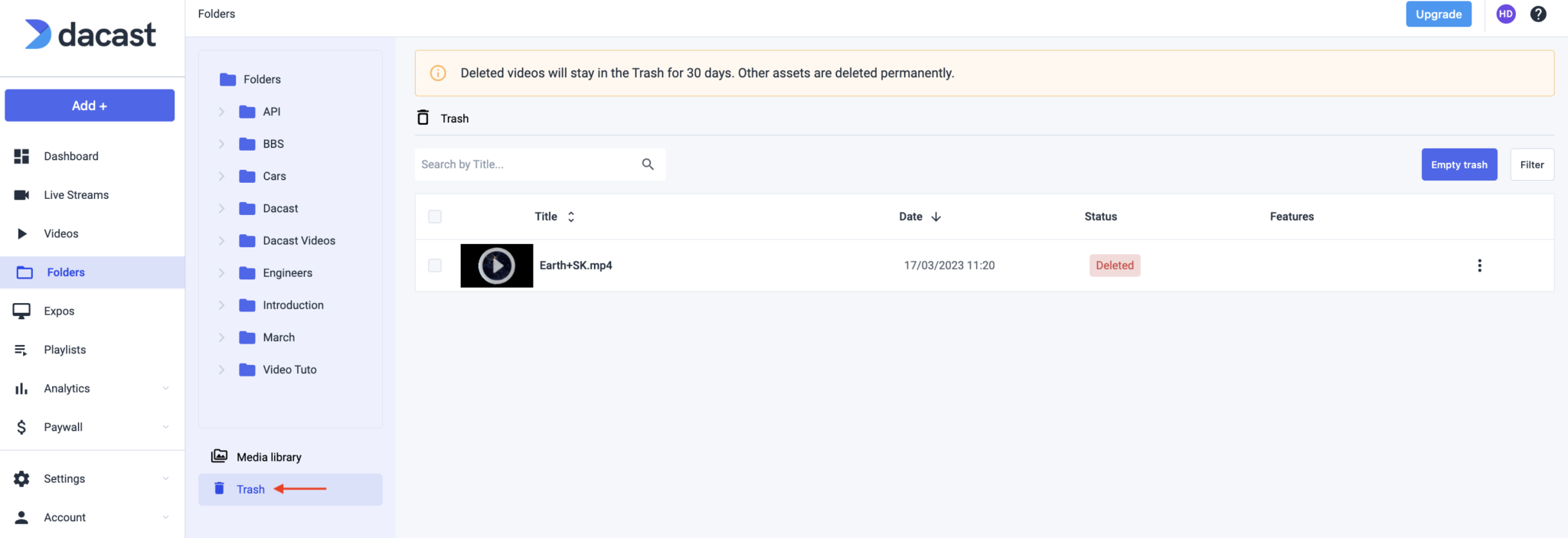
All deleted videos will stay on the Trash folder for 30 days upon deletion; they will then be permanently deleted. You can also manually empty the Trash folder to immediately free up storage space.
To have old live stream recordings moved to trash automatically instead of deleting them manually, see Auto Trash for Recordings.
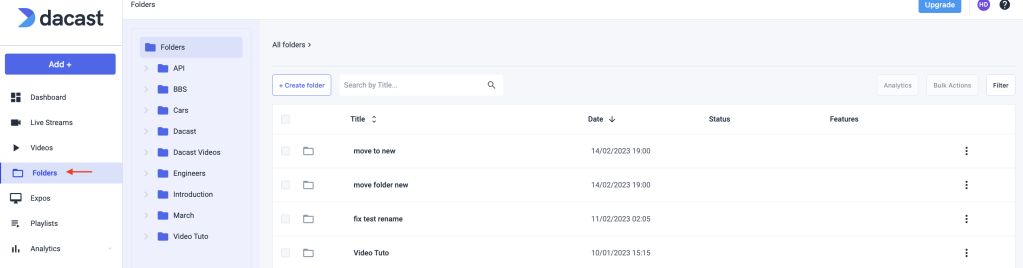
- To access the Trash folder, click on the “Folders” option, available on your left side menu as shown below:
- Then, click “Trash”.
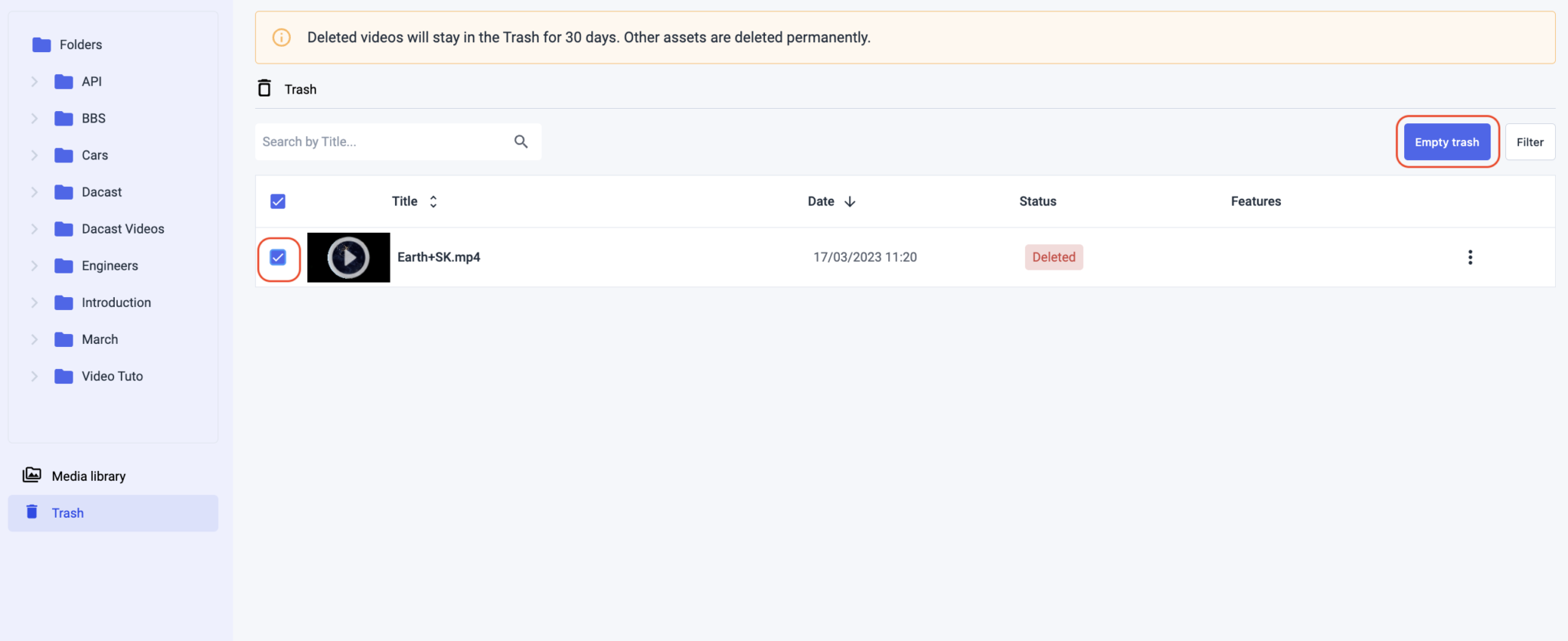
- You can delete your videos files from the trash permanently by marking them using the main checkbox and clicking “Empty trash” as shown below:
If you still need help to delete uploaded videos or have any questions regarding Dacast setup, Please contact us anytime via our chat or email.